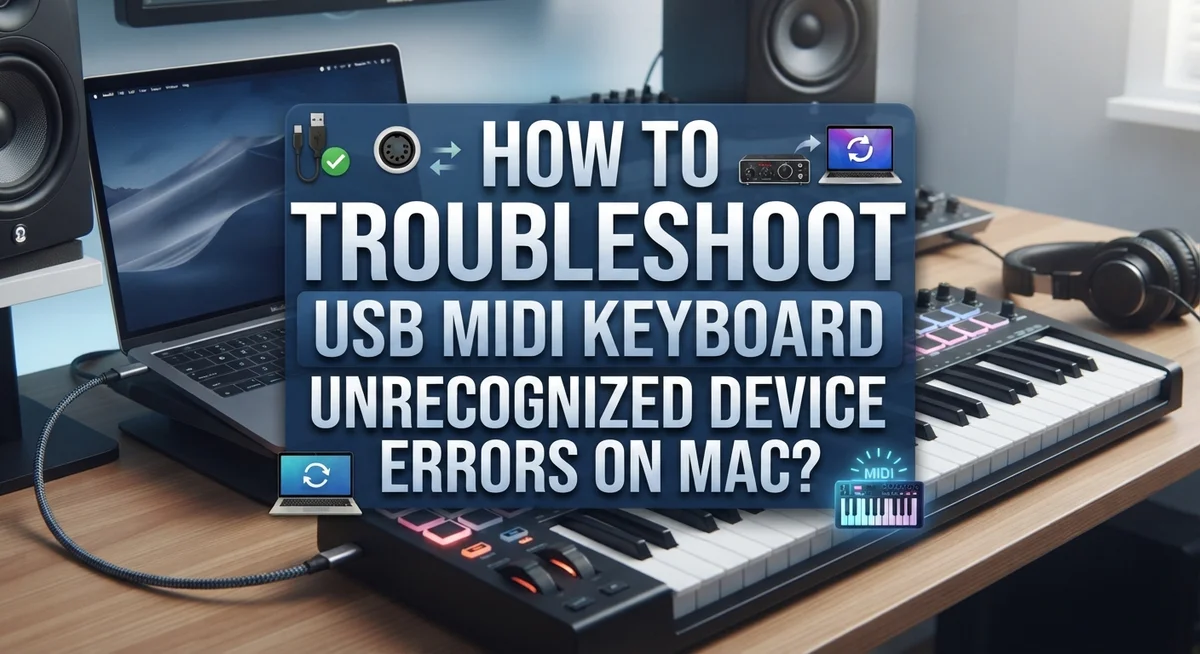
How to Troubleshoot USB MIDI Keyboard Unrecognized Device Errors on Mac?
Plugging in your USB MIDI keyboard should feel simple. You connect it, open your music software, and start playing. But sometimes your Mac refuses to see the device at all.
This error can stop your creative flow fast. You might see a warning about an unrecognized device, or your keyboard just stays silent. It is frustrating, especially when you are ready to record or perform.
The good news is that this problem is common and fixable. Most causes come down to simple things like cables, power, or connection settings. You do not need to be a tech expert to solve it.
In this guide, we will walk through practical steps to fix USB MIDI keyboard recognition issues on Mac. You will learn why unpowered hubs cause trouble, how a quick reset can help, and where to check your Mac settings for confirmation.
In a Nutshell
- Start with the basics. Try a different USB cable first. This simple swap solves many connection problems right away.
- Skip the USB hub. Unpowered hubs are the most common cause of recognition errors. Connect your keyboard directly to your Mac instead.
- Restart the connection. Unplug your keyboard, wait five seconds, then plug it back in. This small pause lets your Mac reset the port properly.
- Reset your keyboard. Hold the “+” and “-” buttons while powering on. This returns your device to factory settings and clears any glitches.
- Check system recognition. Go to Apple menu > About This Mac to confirm your Mac sees the device. This step tells you if the problem is hardware or software related.
- Be patient with troubleshooting. Most issues come from cables or power sources. Working through each step in order usually brings your keyboard back online quickly.
Understanding Why Mac Fails to Recognize MIDI Keyboards
Your Mac communicates with USB MIDI keyboards through a specific recognition protocol. When your keyboard doesn’t show up, the connection chain has broken somewhere.
Most failures happen at the power level. Unpowered USB hubs cannot deliver enough electricity to your keyboard. Your Mac sees nothing because the device never powers on properly. This is the single most common cause of recognition failures.
The second major culprit is the cable itself. USB cables wear out, get damaged, or were never compatible with your keyboard. A cable that looks fine might have internal wire damage. Your Mac sends signals through a dead cable and gets no response back.
Your keyboard also needs to be in the right state. Some keyboards have multiple USB modes or require initialization. If your keyboard powers on but stays in sleep mode or an incompatible configuration, your Mac cannot detect it.
Connection order matters too. Your Mac scans for USB devices when you first plug them in. If your keyboard is already connected when you start your Mac, the system might miss it during the startup scan.
macOS has specific drivers for class-compliant MIDI devices. Your keyboard must follow these standards to be recognized. Non-compliant keyboards need special software that might not exist for your Mac version.
The USB port itself could be the problem. Your Mac has multiple USB ports, and some might have power delivery issues. A port that works fine for a mouse might not provide enough power for a keyboard.
Temperature and connection cleanliness play small roles too. Dirty USB connectors create poor electrical contact. Cold temperatures can affect power delivery. These are less common but worth knowing.
Understanding these failure points helps you troubleshoot systematically. You will check power first, then cables, then configuration, then ports. This logical approach saves time and frustration.
Checking Physical Connections and USB Cables
Start by examining your USB cable carefully. Look for visible damage like cuts, bends, or exposed wires. A damaged cable is the second most common reason your Mac won’t recognize your MIDI keyboard. If you see any wear, try a different USB cable right away.
Test with a cable you know works well. Borrow one from another device if needed. This simple swap often reveals whether the cable is your problem. Many people overlook this step and waste hours on other fixes.
Next, check where you’re plugging in your keyboard. Avoid unpowered USB hubs at all costs. These hubs cannot supply enough power to your keyboard. Your Mac will see the device try to connect, then fail. Always plug directly into your Mac’s USB port instead.
If your Mac has limited USB ports, use a powered hub. A powered hub has its own electrical adapter and can deliver full power to your keyboard. Unpowered hubs look similar but lack that external power source, so check carefully.
Inspect both ends of your USB cable for dirt or debris. Clean connectors with a dry, soft cloth if needed. Dust and grime block electrical contact between your keyboard and Mac.
Try different USB ports on your Mac. Some ports may have connection issues while others work fine. Test each port to find one that works reliably.
After you’ve checked the cable and ports, disconnect your keyboard completely. Wait five seconds. Then plug it back in. This simple restart often resets the connection and helps your Mac recognize the device fresh.
Take your time with these physical checks. Most MIDI keyboard recognition problems start here. Rushing through these steps means you might miss the real issue and move on to more complex fixes unnecessarily.
Step-by-Step: Reconnecting and Resetting Your Device
Start fresh with your connection. Disconnect your MIDI keyboard from your Mac completely. Wait for five full seconds before reconnecting it. This pause lets your Mac clear the previous connection attempt from its memory.
When you reconnect, plug the keyboard directly into your Mac’s USB port. Do not use a USB hub for this step, even if it’s powered. Direct connection helps you isolate whether the hub itself is causing the problem.
Watch your keyboard for lights or sounds that indicate it’s receiving power. Some keyboards show a light when they connect successfully. Listen for any chimes from your Mac that signal a new device has been found.
If your keyboard still doesn’t appear, try a different USB port on your Mac. Your computer has multiple ports, and occasionally one port stops working properly. Switching ports takes just seconds and often solves the issue.
Next, reset your keyboard to its factory settings. Most MIDI keyboards have a reset procedure. Hold down the plus and minus buttons simultaneously while powering on your keyboard. Check your keyboard’s manual for the exact button combination, as it varies by model.
Hold the buttons for about ten seconds until you see a light flash or hear a confirmation sound. This reset clears any stored connection problems on the keyboard itself.
After resetting, disconnect the keyboard again. Wait another five seconds, then reconnect it to your Mac using the direct USB port connection.
Pay attention to your Mac’s response. Open the Apple menu and select “About This Mac” to see if your keyboard now appears in the system information. This confirms whether macOS recognizes your device.
Take your time with each step. Rushing through these procedures often means missing small details that could solve your problem immediately.
Verifying Recognition via System Information and Audio MIDI Setup
Your Mac has built in tools to confirm whether it recognizes your USB MIDI keyboard. These tools show you exactly what your computer sees when you plug in your device.
Start by opening System Information. Click the Apple menu in the top left corner. Select “About This Mac.” A window opens showing your computer details. Look for the “System Report” button and click it. A larger window appears with many categories on the left side. Find and click “USB” in that list. Your Mac now displays every USB device currently connected.
Scan through this list carefully. Look for your keyboard’s name or a generic MIDI device entry. If you see it listed here, your Mac recognizes the hardware. If nothing appears, your keyboard isn’t being detected at the system level. This tells you the problem is physical, not software related.
Next, check Audio MIDI Setup. This application specifically handles MIDI device recognition. Open Finder and go to Applications. Navigate to Utilities folder. Double click “Audio MIDI Setup” to launch it. Click the “MIDI Studio” window or tab. This shows all MIDI devices your Mac knows about.
Your keyboard should appear as an icon in this window. If it shows up here, macOS recognizes it as a MIDI device. If it’s missing, your Mac sees the hardware but hasn’t identified it as MIDI compatible.
These two checks tell you different things. System Information confirms basic USB recognition. Audio MIDI Setup confirms MIDI specific recognition. Together they pinpoint where the problem exists.
Take notes of what you see in each tool. This information helps you decide your next troubleshooting step. If your keyboard appears in System Information but not Audio MIDI Setup, the issue is device configuration. If it appears in neither, focus on physical connections and cables first.
The Role of USB Hubs and Power Delivery
USB hubs sit between your Mac and your keyboard. They can cause recognition problems if they don’t have enough power. Unpowered hubs are the most common cause of MIDI keyboard errors on Mac systems.
Your keyboard needs power to communicate with your Mac. An unpowered hub draws electricity from your Mac’s USB port. This creates a weak power supply for your keyboard. Your Mac may not recognize the device because it doesn’t receive enough power to respond properly.
Powered USB hubs solve this problem. These hubs connect to their own power adapter. They deliver full power to every connected device. Your keyboard gets the electricity it needs to work correctly. Your Mac can then recognize it without issues.
The best solution is to connect your keyboard directly to your Mac. Skip the hub entirely if you have an available USB port. Direct connections provide the strongest, most reliable power delivery. This eliminates one potential failure point in your setup.
If you must use a hub, choose a powered one. Look for hubs that include a power adapter in the box. Check that the hub supports USB power delivery at the correct wattage. Your keyboard’s manual lists the power requirements you need.
Test your connection before assuming the hub works. Plug your keyboard directly into your Mac first. If it works this way, you know the hub was the problem. If it still doesn’t work, the issue lies elsewhere.
Cable quality matters too when using hubs. Poor cables reduce power delivery even with powered hubs. Use high quality, shielded USB cables for the best results.
Location also affects performance. Keep your keyboard and hub away from other electronics. Radio interference from phones or routers can disrupt USB signals. A clear, direct path between devices improves recognition reliability.
Common Mistakes That Cause Persistent Connection Errors
Many people make the same mistakes when their USB MIDI keyboard stops working. Understanding these errors helps you fix the problem faster.
The most common mistake is using an unpowered USB hub. Your keyboard needs steady power to communicate with your Mac. When you plug it into a hub without its own power adapter, the connection becomes unstable. The keyboard may appear and disappear randomly. Your Mac might not recognize it at all.
Another frequent error involves using the wrong USB cable. Not all cables work the same way. Some cables are damaged inside even though they look fine on the outside. Others don’t support data transfer properly. You might have a charging cable instead of a data cable. This causes your Mac to see the keyboard as an unknown device.
People also skip important reset steps. Your keyboard stores connection settings in its memory. If these settings get corrupted, your Mac won’t recognize the device. Many users don’t realize they need to reset the keyboard to factory defaults.
Impatience causes problems too. When you reconnect your keyboard, you need to wait for your Mac to detect it. This takes several seconds. Plugging and unplugging quickly confuses your system. Your Mac needs time to process each connection.
Some users also ignore cable quality issues. A frayed or bent cable might work sometimes but fail other times. This creates frustrating intermittent errors where your keyboard works one moment and disappears the next.
Finally, people often skip verification steps. They assume the keyboard isn’t recognized without checking your Mac’s system tools. Sometimes the keyboard connects fine, but the software doesn’t show it properly.
Avoid these mistakes by connecting directly to your Mac, using quality cables, resetting your keyboard, waiting patiently between reconnections, and checking your system tools to verify recognition.
Advanced Troubleshooting for Stubborn Recognition Issues
When your USB MIDI keyboard remains unrecognized after basic troubleshooting, you need to dig deeper into your system. Start by checking your Mac’s device tree using System Report. Click the Apple menu, select About This Mac, then choose System Report. Look for your keyboard under USB devices. If it appears there but not in Audio MIDI Setup, your Mac sees the hardware but something blocks communication.
Next, inspect your USB cable closely. Faulty cables cause more recognition issues than people realize. Bend the cable gently along its length while watching System Report. If the device disappears and reappears, your cable has internal damage. Replace it immediately. Test with a different cable from another device to confirm before buying a new one.
Your keyboard’s firmware might need attention too. Some MIDI keyboards store connection settings in their memory. Access your keyboard’s settings menu through its buttons or display. Look for options like “USB Mode” or “Host Mode.” Switch between these settings if available, then reconnect. This simple change often resolves stubborn recognition problems.
Try a different USB port on your Mac. Some ports deliver power inconsistently, especially on older machines. Test every available port before assuming your keyboard is broken. Ports on different sides of your Mac sometimes behave differently.
Finally, create a clean connection environment. Disconnect all other USB devices except your keyboard and mouse. This eliminates interference from competing devices. Many users discover their keyboard works fine once they remove USB hubs, external drives, and other peripherals.
If your keyboard still doesn’t appear after these steps, the device itself may have internal damage. Contact the manufacturer’s support team with details about what you’ve tried. They can often provide firmware updates or replacement options.
Final Thoughts
Fixing a USB MIDI keyboard unrecognized error on Mac takes patience and a systematic approach. Most problems trace back to simple causes. Cables, power sources, and hub choices create the majority of connection failures.
Start with the basics every time. Check your cable first. Then look at your power source and connection type.
Direct connections work best. Your Mac and keyboard communicate clearly without extra hardware in between. This simple choice prevents many future headaches.
When direct connections aren’t possible, choose your hub carefully. A powered USB hub gives your keyboard the electricity it needs. This small detail makes a big difference in recognition success.
Reset procedures matter more than people realize. Your keyboard sometimes needs a fresh start to communicate properly. Don’t skip this step when troubleshooting.
Give your Mac time to recognize new devices. Rushing through reconnection steps often causes more problems. Patience genuinely helps here.
Remember that most fixes are quick and free. You don’t need special tools or technical expertise. Basic troubleshooting solves the vast majority of cases.
Keep a mental checklist for future issues. Check cables, verify power, avoid unnecessary hubs, and reset when needed. This routine saves time whenever problems appear again.
If basic steps don’t work, dig a little deeper. Check different ports and inspect your hardware closely. Sometimes the issue hides in details you missed initially.
Persistent errors after thorough troubleshooting suggest deeper problems. Internal damage becomes a real possibility at this point. Professional repair or replacement might be your next step.
Stay calm during this process. Most musicians face this exact problem at some point. Your keyboard will likely work again with the right approach.
Trust the process and work through each step methodically. Recognition errors feel frustrating, but they’re usually solvable. Your music making can continue once you identify the real cause.
Frequently Asked Questions
Why does my Mac say my MIDI keyboard is an unrecognized device?
Your Mac cannot communicate with the keyboard through USB. This usually happens because of three things: a faulty cable, an unpowered hub, or incorrect device settings. Start by checking your cable first. Look for visible damage or bent connectors. Then verify you connected directly to your Mac instead of through a hub.
Can I use a USB hub with my MIDI keyboard?
Yes, but only a powered hub works reliably. Unpowered hubs cannot supply enough power for your keyboard to function properly. Connect directly to your Mac whenever possible for the fastest recognition. If you must use a hub, make sure it has its own power adapter.
How do I reset my MIDI keyboard to fix recognition errors?
Most keyboards have a reset option in the settings menu. Check your keyboard’s manual for the exact buttons. Many models require holding the plus and minus buttons together while powering on. Wait for the keyboard to restart completely before reconnecting to your Mac.
What should I do if my keyboard still isn’t recognized?
Try these steps in order: use a different USB cable, try another USB port on your Mac, wait 10 seconds between disconnect and reconnect, and check the About This Mac section to see if your device appears anywhere. If nothing works, your keyboard may have internal hardware damage requiring professional repair.
Why does my keyboard work sometimes but not always?
Loose connections cause this problem most often. Inspect where the cable meets both the keyboard and your Mac. Push the connector firmly into place. Also check if other devices near your setup cause interference. Move your keyboard away from wireless routers and other electronics.

Hi, I’m Tessa! As a lifelong music lover and gear enthusiast, I started this blog to help fellow musicians navigate the overwhelming world of instruments and equipment. I spend my time researching, comparing, and reviewing musical gear so you can spend yours doing what matters most — making music.